How do I add a GIF to Google Slides so it animates?
Use Insert > Image > Upload from computer (or Search the web / Drive) to place the GIF on a slide, then start the slideshow with Present to see it animate. GIFs only animate in presentation mode, not in the editing view, and they play on a loop for as long as the slide is on screen. If the GIF won't upload, it is usually too large or has too many frames, so shrink it first.
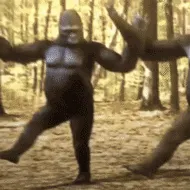
A dancing gorilla GIF is the classic test file for checking that your inserted GIF actually animates in Present mode.
Send this when someone asks what a working animated GIF in a slide should look like.
For the moment a too-large GIF slides off the upload and fails, exactly like this walrus.
Use it when the GIF looks fine while editing but freezes the moment the presentation starts.
A good reaction for a slide transition that slides in smoothly instead of jumping.
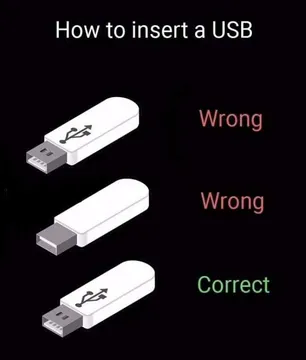
Post it when a teammate can't find the Insert > Image menu on the first try.
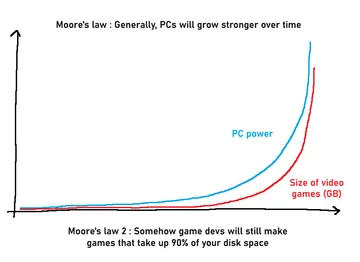
For the endless retry of re-uploading a GIF that keeps failing to load.




Insert the GIF step by step
Open your deck in Google Slides and select the slide where the GIF should appear.
Go to Insert > Image, then pick Upload from computer if the file is on your machine, Drive if it is already in Google Drive, or Search the web to pull one in directly.
Click the GIF once to place it, then drag the corner handles to resize it. Hold Shift while dragging to keep the proportions.
Click Present or press Ctrl+F5 (Cmd+Enter on Mac) to run the slideshow. The GIF animates only in presentation mode; in the editing canvas it shows a single still frame.
Why your GIF won't play or loop
GIFs in Google Slides always loop while the slide is displayed. There is no built-in setting to play once, so a GIF made to play a single time will finish and then sit on its last frame.
If the GIF never moves, check that you are in Present mode and not in the editor or in a published preview that strips animation.
If the file won't upload at all, size is the usual cause: a GIF with many frames or a large canvas can be rejected. Re-export it smaller with fewer frames, a smaller canvas, or a tool like Ezgif, then upload again.
If it plays in one browser but not another, clear the cache, disable extensions, or try a different browser before rebuilding the deck.
Control the timing instead of the loop
Because you can't stop a GIF from looping, control when it appears: select the image, open Format options or the animation panel via Insert > Animation, and set it to appear on click or after the previous animation.
For a GIF that should play once at a specific moment, convert it to a video (MP4) and insert it with Insert > Video, where you get playback controls. Ezgif and similar converters handle GIF to MP4.
Keep one animated image per slide. Several large GIFs on one slide slow down loading and make the deck feel busy.
Where to get GIFs that fit the slide
For a quick reaction image or a short looping visual, memecub.com lets you browse, search, copy and download memes without signing up. Most are collected from the web, so they are fine for personal and internal fun, with copyright staying with the original creators; use the openly licensed filter if the deck is commercial.
If nothing in the library fits, the AI meme maker at memecub.com/generate builds one from a character, action and caption in about ten seconds per image, and it refuses real people.
Keep tone in mind: a GIF in a client deck reads differently from one in a team standup. Match the room.
Nothing quite right? Make one
Pick a character, type a caption, get it in about 10 seconds.
More that fit







FAQ
Why won't my GIF work on Google Slides?
Most often it is either too large to upload or you are looking at the editing view, where GIFs show as a still frame. Try Present mode first, then re-export the GIF smaller if it still fails.
How do I make a GIF play only once in Google Slides?
You can't. Google Slides loops GIFs for as long as the slide is shown. To play once, convert the GIF to MP4 and insert it as a video, or time the slide to advance when the animation ends.
Why are my GIFs not animated after I insert them?
GIFs animate only during the slideshow. In the editor, on a published preview, or in some exported formats you see a single frame, which is expected behavior.
How do I fix a GIF that stops after one loop?
That usually means the GIF file itself was saved as play-once. Re-save or re-export it as a looping GIF with a tool like Ezgif, then upload it again.
Can I insert a GIF from Google Drive?
Yes. Use Insert > Image > Drive and pick the file. The GIF must be stored as a GIF in Drive, not converted to another format.