What is the 5-5-5 rule in PowerPoint?
The 5-5-5 rule in PowerPoint is a slide-design guideline: no more than 5 words per line, 5 lines per slide, and about 5 slides in a row before you change topic or pace. It is a memory aid for keeping slides scannable, not a hard rule. Many presenters treat it as a starting point and break it when a chart, quote or story needs more room.
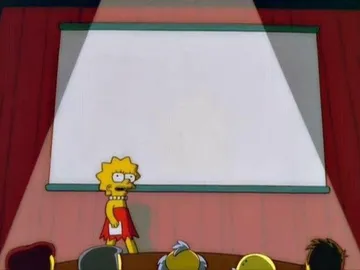
Send it when your slide deck is so text-heavy that the screen behind you is basically blank.
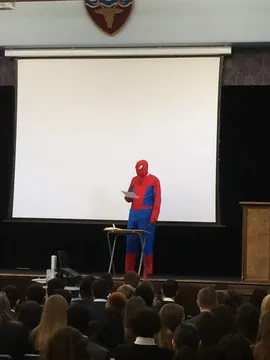
The moment you step up to a projector screen and realize the 5-5-5 rule was ignored.
A light opener for a slide-design talk: the dog looks like it is counting words per line.
Use it when someone asks for feedback on a whiteboard full of bullet points.
The polite stop gesture for a teammate who wants to add a sixth line to a slide.
For the presenter who enforces 5-5-5 on everyone else's slides but not their own.
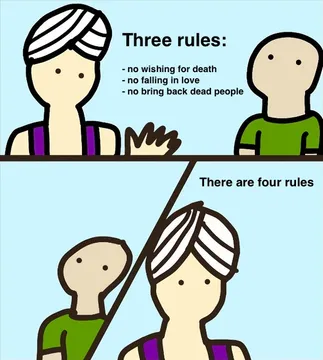
A playful way to introduce the rule as a wish: three numbers, one wish for a cleaner deck.
When the audience's eyes slide off the slide after the fifth bullet.





What the three 5s actually mean
5 words per line: each bullet stays short enough to read at a glance, so the audience listens to you instead of reading.
5 lines per slide: the slide holds one idea, not a document. If you need more, split it into two slides.
5 slides in a row: change rhythm roughly every five slides, with a visual, a question, a story or a short break, so attention does not drift.
The rule is about density and pace, not a strict count. A title slide, a chart or a single quote can break it without hurting the talk.
When to break the 5-5-5 rule
Quotes and data slides: a full quote or a table needs its own space; keep the surrounding slides light instead.
Teaching and workshop decks: students often need worked examples and step lists, which run longer than five lines.
Pitch decks: investors expect a clear problem, solution and numbers, so a few dense slides are normal.
If you break it, say why in the speaker notes so a reviewer does not trim the slide back.
Where memes fit without breaking the rule
A meme is a visual, so it replaces text rather than adding to it. One meme on a slide can carry the joke that five bullets would have killed.
Place it at a transition: after a dense section, before a break, or on the slide where you admit a mistake.
Keep it readable: one image, one caption, and enough contrast that the back row can see it.
If nothing in a meme library fits the moment, memecub's AI meme maker lets you describe a character, action and caption and get an image in about ten seconds; the AI meme placement tool can also pick a meme for each paragraph of a script.
How to add a meme to a slide
Find the image, copy or download it, then use Insert > Pictures in PowerPoint and drag it into place.
For animated GIFs, use Insert > Pictures and choose the GIF file; it plays in Slide Show mode, not in the editing view.
Crop and resize with the corner handles, then add a short caption in a plain font so the joke lands fast.
Check the source: most web memes are fine for personal or classroom use, but for client or commercial decks use openly licensed images or make your own.
Nothing quite right? Make one
Pick a character, type a caption, get it in about 10 seconds.
More that fit







FAQ
How do I put memes into PowerPoint?
Save the image, then go to Insert > Pictures and place it on the slide. For GIFs, insert the file the same way and check it in Slide Show mode, where the animation plays.
What is the meme font in PowerPoint?
There is no official meme font. Most memes use a heavy sans-serif such as Impact with white letters and a black outline, which you can recreate with text effects in PowerPoint.
How do you put GIFs in PowerPoint?
Use Insert > Pictures and select the GIF file. It stays animated during the slideshow; in the normal editing view you usually see only the first frame.
Is the 5-5-5 rule a real standard?
No. It is a presentation guideline popular in training and public-speaking advice, not an official standard. Treat it as a default and adjust for your audience and content.
Can I use memes in a class presentation?
Usually yes for personal or classroom use, since most memes are shared from the web and copyright stays with the original creator. For published or commercial decks, use openly licensed images or make your own.