How do I convert a GIF to MP4 for Google Slides?
To convert a GIF to MP4 for Google Slides, use a free online converter like Ezgif or CloudConvert: upload your GIF, choose MP4 as the output format, and download the file. Then, in Google Slides, go to Insert > Video > Upload and select the MP4. This ensures the animation plays smoothly during your presentation.
Send when someone asks why the GIF won't convert automatically in Slides.
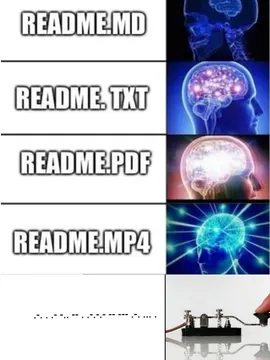
Use when discussing the untapped potential of MP4 over GIF for presentations.
Post when you finally fix the GIF-to-MP4 conversion chain.
Share when troubleshooting why GIFs don't play in Google Slides.
React when you've tried every fix for GIF playback issues.
Use when explaining that MP4 gives you more control over playback.






Why convert GIF to MP4 for Google Slides?
Google Slides supports GIFs, but they often play only once or not at all, especially if they're large or have many frames. Converting to MP4 ensures the animation plays reliably and loops seamlessly during your presentation.
MP4 files are also smaller and load faster, reducing the chance of lag or upload errors.
How to convert a GIF to MP4
Step 1: Go to a free online converter like Ezgif (ezgif.com/gif-to-mp4) or CloudConvert.
Step 2: Upload your GIF file.
Step 3: Choose MP4 as the output format and adjust settings if needed (e.g., loop count).
Step 4: Click Convert and download the MP4 file.
How to insert the MP4 into Google Slides
Step 1: Open your Google Slides presentation and go to the slide where you want the animation.
Step 2: Click Insert > Video > Upload.
Step 3: Select the MP4 file from your computer and click Open.
Step 4: The video will appear on the slide. You can resize and reposition it.
Step 5: To set the video to play automatically, right-click the video, select Format options, and under Video playback, choose Automatically.
Tips for smooth playback
Keep the MP4 file size under 100 MB to avoid upload issues.
If the video doesn't play, check that your browser is up to date and try clearing the cache.
For presentations, test the slideshow mode to ensure the video plays as expected.
Nothing quite right? Make one
Pick a character, type a caption, get it in about 10 seconds.
More that fit







FAQ
Why won't my GIF work on Google Slides?
GIFs may not play due to large file size, too many frames, or browser issues. Converting to MP4 often resolves this.
How to get GIFs to play on Google Slides?
Insert the GIF via Insert > Image, but if it doesn't animate, convert it to MP4 and insert as a video.
How to fix GIFs not playing?
Try clearing your browser cache, disabling extensions, or converting the GIF to MP4 for reliable playback.
Why are my GIFs not animated?
Google Slides may not support certain GIF features like looping. Converting to MP4 gives you control over looping and playback.