How do I put GIFs in PowerPoint?
Save the GIF to your computer, then in PowerPoint go to Insert > Pictures > This Device and pick the .gif file. It plays automatically in Slide Show mode; in the editing view you only see the first frame. To make it loop forever, select the GIF, open the Animations tab, and set it to repeat until the end of the slide.
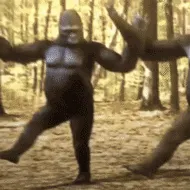
A dancing gorilla striding through the forest — good opener when the slide is about momentum or getting started.
The blank stare with a “Pov:” caption fits the moment you show a slide nobody expected.
The bowl-cut guy with a handheld console is the reaction to drop after a boring status update.
The woman aiming a handgun with a smirk works as a playful “next slide, please” beat.
The finger-to-temple smirk is a clean reaction GIF for a slide that makes a bold claim.
Three baby photos comparing reactions — use it when explaining how different users respond to the same thing.
The loop-and-no-mistakes comparison lands with developer or QA audiences.
A waving anime sticker is a friendly way to open or close a presentation.







Insert the GIF step by step
Download the GIF first — right-click it on the page and choose Save image as, or use the download button on memecub. PowerPoint does not paste animated GIFs from the clipboard with their animation intact.
In PowerPoint, go to Insert > Pictures > This Device (older versions: Insert > Pictures), select the .gif file, and click Insert. Resize and position it like any other image.
Switch to Slide Show to check it animates. In the normal editing view PowerPoint shows only the first frame, which is normal and not a sign the file is broken.
Make it loop and control playback
Select the GIF, open the Animations tab, and open the animation pane. Set the GIF to repeat until the end of the slide so it keeps moving while you talk.
If the GIF should start on a click, add an entrance animation (such as Appear) and set it to On Click. If it should run the whole time, set it to With Previous.
Keep GIFs small in file size. Very large GIFs can make the deck slow to open; a shorter loop or a smaller frame size helps.
Choosing GIF memes that fit the slide
Match the meme to the moment: an opener, a reaction after a data slide, or a closing slide. One GIF per few slides is usually enough; a wall of them distracts from your point.
For a work or classroom deck, check the source. Most memes on memecub are collected from the web and are fine for personal chats, but copyright stays with the original creators, so they are not for commercial use. The site has a filter that shows only openly licensed images, which is the safer choice for client or public presentations.
If nothing in the library fits, the AI meme maker at memecub.com/generate lets you describe a character, action and caption, or start from an existing meme as a reference. It takes about 10 seconds per image and refuses real people.
Alternatives if the GIF will not animate
Convert the GIF to an MP4 and use Insert > Video > This Device. Video playback is smoother and the file is often smaller.
If you only need a still, insert the GIF as a picture and it will show the first frame — fine for a printed handout.
On PowerPoint for the web, animated GIFs play in Slide Show but editing options are limited; do the animation setup in the desktop app.
Nothing quite right? Make one
Pick a character, type a caption, get it in about 10 seconds.
More that fit







FAQ
How do I put memes into PowerPoint?
Download the meme image or GIF, then use Insert > Pictures > This Device to place it on the slide. For animated memes, check playback in Slide Show mode.
What is the 5-5-5 rule in PowerPoint?
It is a common presentation guideline: about five words per line, five lines per slide, and five text-heavy slides in a row at most. It is a rule of thumb, not a PowerPoint setting.
What is the meme font in PowerPoint?
There is no official meme font. Most meme images use Impact with a white fill and black outline, which you can recreate with a text box in PowerPoint.
Why is my GIF not moving in PowerPoint?
In the normal editing view PowerPoint shows only the first frame. Press Slide Show to see it animate; if it still does not move, the file may have been pasted rather than inserted, so re-insert it from disk.
Can I use memecub GIFs in a work presentation?
Most memes on memecub are collected from the web and are meant for personal use, with copyright staying with the original creators. For commercial or public decks, use the filter that shows only openly licensed images.