How do I save a GIF I received in iMessage?
Touch and hold the GIF bubble in the conversation, then tap Save (or Save to Photos) in the menu that appears; the animated GIF lands in your Photos app under Recents. If the menu only offers Copy, tap Copy and paste it into a note or a new message to yourself, then save from there. If the GIF came through the #images app, open that app inside Messages and save it from its own preview instead.
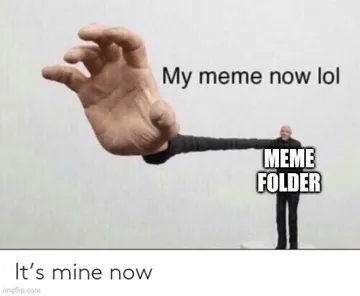
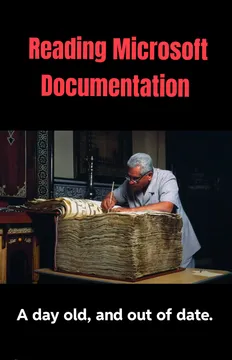
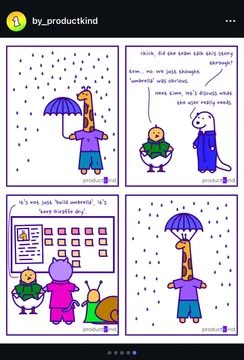
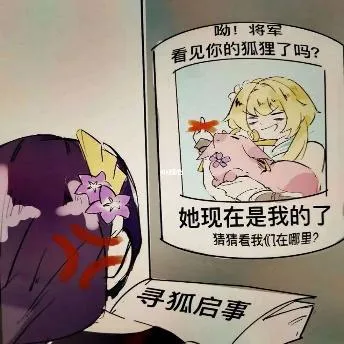
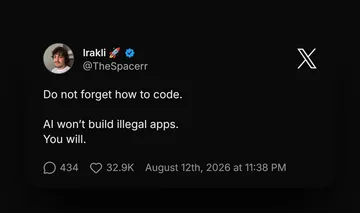
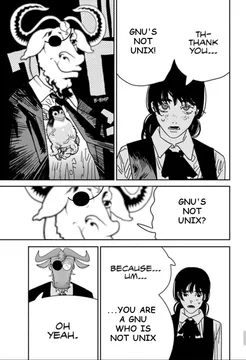
Send this right after you finally rescue a GIF from a chat before it scrolls away.
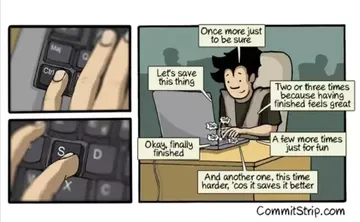
For the friend who saves every GIF three times just to be safe.
A short “got it” reply when someone sends you a GIF and you confirm it saved.
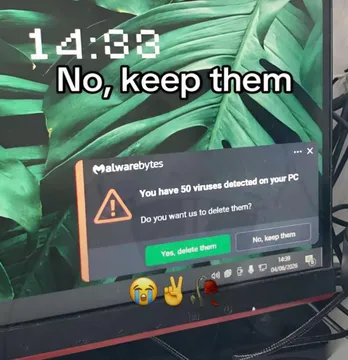
When a GIF you wanted disappeared from the thread and you are openly weeping about it.
Same energy for the moment the Save option is missing from the long-press menu.
Send to the person who keeps forwarding the same GIF after you asked them to stop.
For saving a GIF “for later” and then never opening it again.




Save a GIF you received, step by step
Open the conversation in Messages and find the GIF bubble. Do not tap it once, because a single tap may open or replay it instead of showing options.
Press and hold the bubble until the action menu pops up. Tap Save or Save to Photos. On some iOS versions the option is under a “…” or More button in that menu.
Open Photos and check Recents. The GIF is stored as a live, animated image, so it plays when you tap it and stays animated when you send it back out.
If Save is not in the menu, tap Copy instead, open Notes or a new message to yourself, paste, and save from there. Copying keeps the animation.
When the GIF came from the #images app
GIFs sent through the #images app inside Messages behave like app content, not always like a normal photo attachment. Long-press may only offer reactions.
Tap the app icon in the message to reopen #images, find the same GIF in its recent or search results, and use the app’s own save or share option.
As a fallback, take a screen recording of the GIF playing, then trim it in Photos. You get a video rather than a GIF, but it keeps the motion.
If the GIF button disappeared from your keyboard
The GIF option is not gone from iMessage; it lives in the app drawer. Tap the App Store icon or the plus button to the left of the text field and look for #images or your GIF keyboard app there.
If the drawer looks empty, open the app store inside Messages and re-add #images, or reinstall your GIF keyboard app so its iMessage extension reappears.
After an iOS update, restart the phone and check Settings for Messages to confirm the app is still enabled. Most “GIFs disappeared” reports clear up after the extension is re-added.
Saving GIFs you want to send, not just receive
For a GIF to send later, memecub.com lets you search and download memes without an account; most are collected from the web and fine for personal chats, with a filter for openly licensed images if you need commercial use.
If nothing in the library fits the moment, the AI meme maker at memecub.com/generate builds one from a character, action and caption in about ten seconds.
Nothing quite right? Make one
Pick a character, type a caption, get it in about 10 seconds.
More that fit



FAQ
Can I download a GIF someone sent me in iMessage?
Yes. Long-press the GIF bubble and choose Save or Save to Photos; it appears in your Photos app as an animated image you can send again later.
Where have my GIFs gone in iMessage?
They are usually still there, just moved into the app drawer. Tap the plus or App Store icon next to the text field and look for #images or your GIF keyboard app.
How do I enable GIFs on iMessage?
Open a conversation, tap the app drawer icon, and add #images or a GIF keyboard app such as GIPHY or Tenor. Once added, it stays in the drawer for every chat.
Can you still send a GIF on iMessage?
Yes. Search inside the #images app in Messages, tap a GIF, and it sends as an animated bubble the other person can save the same way.
Why does long-pressing a GIF only show Copy?
Some GIFs arrive as app content rather than photo attachments, so the save option is missing. Copy and paste it into Notes, or reopen the sending app and save from its preview.