How can I create a GIF from images?
To create a GIF from images, gather your pictures, use a free online GIF maker to upload and arrange them as frames, set the speed, and export. For reaction GIFs, you can also start from an existing meme and add text. If you need a custom meme, memecub’s AI meme maker can generate one from a description.
Send when your GIF is still loading or the frames are taking forever to render.
Use when someone asks why your GIF looks choppy or the timing is off.
Perfect for when you’re staring at a blank timeline wondering which image to use next.
Send as a reaction when someone shares their first attempt at a GIF.
For when your computer is struggling to process a large batch of images into a GIF.
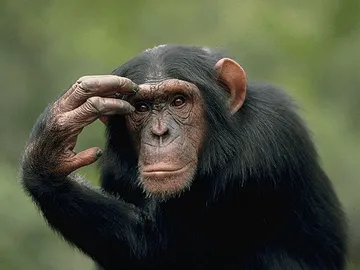
Use when you’re inspecting each frame to check for smooth animation.

Step-by-step: Make a GIF from images online
1. Collect your images: Choose the pictures you want to animate. They should be in a common format like JPG or PNG, and ideally the same size for a clean loop.
2. Pick a free online GIF maker: Sites like Canva, EZGIF, or Adobe Express let you upload images and arrange them as frames. No sign-up is needed for basic use.
3. Upload and order your frames: Drag and drop your images into the tool and set the sequence. You can usually adjust the delay between frames (e.g., 0.2 seconds for a fast loop).
4. Add text or effects (optional): Many tools let you overlay captions, stickers, or filters. This is handy for reaction GIFs.
5. Export and download: Click “Make a GIF” or “Export” and save the file. Check the file size—GIFs can get large, so you might need to resize or reduce colors.
How to make a reaction GIF or custom emoji
For reaction GIFs, start with a short video clip or a sequence of images that capture the expression. Use a GIF maker that supports video-to-GIF conversion, or extract frames from the video and combine them.
To make a custom emoji, keep the GIF small (e.g., 128x128 pixels) and loop it seamlessly. Tools like EZGIF have an “optimize” option to reduce file size for messaging apps.
If you can’t find the right reaction image, memecub’s AI meme maker can generate a custom meme from a text description—just describe the character, action, and caption.
Tips for smooth, shareable GIFs
Keep it short: 2–5 seconds is ideal for reactions and emoji. Longer GIFs are large and may not autoplay on some platforms.
Use consistent frame sizes: Resize all images to the same dimensions before uploading to avoid jitter.
Optimize colors: GIFs support up to 256 colors; reducing the palette can shrink file size without much visible loss.
Test on your target platform: Some apps compress GIFs heavily, so check how it looks before sharing widely.
Nothing quite right? Make one
Pick a character, type a caption, get it in about 10 seconds.
More that fit

FAQ
How do I make a GIF from multiple pictures?
Use a free online GIF maker: upload your pictures, arrange them in order, set the frame delay, and export. Most tools let you drag and drop images and preview the animation before downloading.
How can I turn photos into an animated GIF?
Combine your photos as frames in a GIF maker. For a slideshow-style GIF, set a longer delay (e.g., 1 second per photo). For a smooth animation, use a burst of photos taken in quick succession.
How do I create a GIF on my phone?
Use a mobile app like Giphy Cam, GIF Maker, or ImgPlay. These apps let you select photos from your camera roll, add text or stickers, and save the GIF directly to your phone.
How to make custom GIF emoji?
Create a short, looping GIF (under 1 second) with a transparent background if possible. Resize it to emoji dimensions (e.g., 128x128) and save as GIF. Then add it to your messaging app’s custom emoji or sticker section.